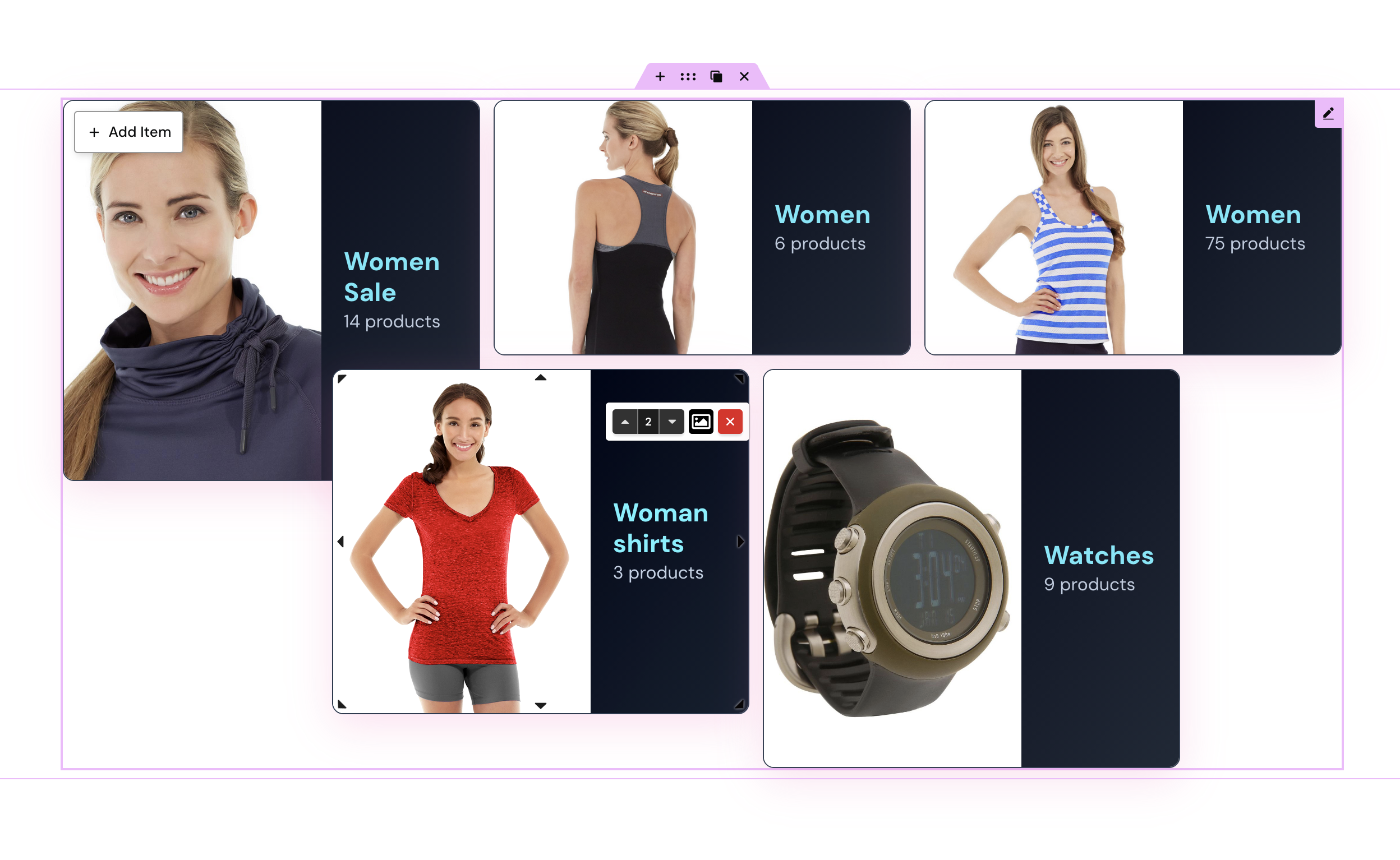


Basic Categories Layout block example
Intro
With the “Layouts Carousel” block you can create a carousel with any of Mosaic Product Layouts blocks – Products Layout, Categories Layout, or Single Product Layout.
Carousel, slides, and blocks
Once the Layouts Carousel block is added to a page, it will have only one slide added to a carousel. The slide will be empty, with a block inserter (black square button with white “+”) appearing when the slide is selected (click on empty slide)

When clicked on block inserter button the selection of Mosaic Product Layouts blocks will appear – clicking on one of block icons will insert the block in slide.

To add more slides to carousel, click on Add Slide button in Layouts Carousel sidebar settings.
To access the settings, click on parent block icons in block controls toolbar (above the block, or on top of editor), until Layouts Carousel settings appear in the editor sidebar.


Alternatively, use the Document Overview to see all blocks in a list view, navigate through blocks structure, and select Layouts Carousel block to access it’s controls:
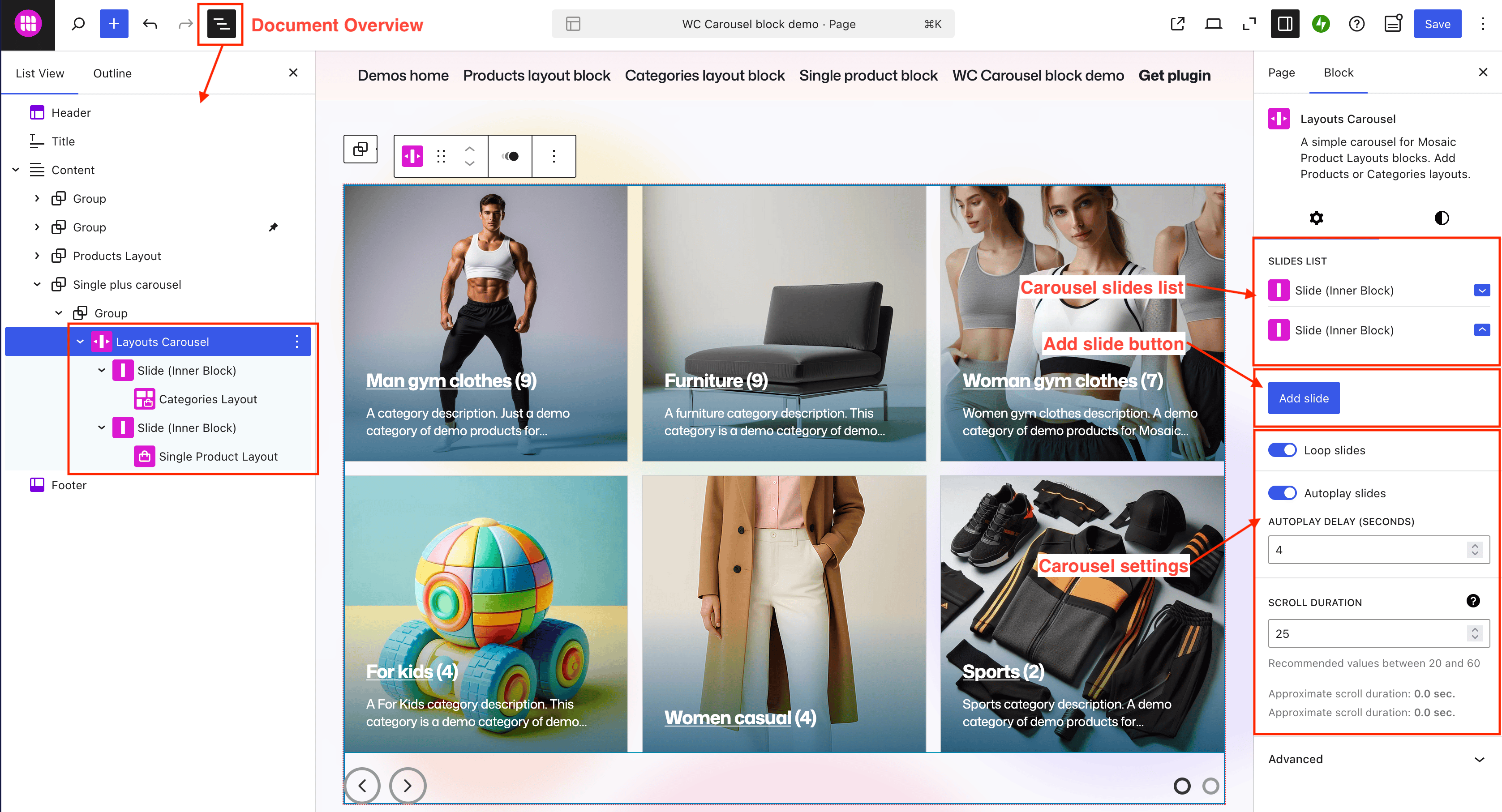
Carousel and slide settings
Slides list
Slides are actually inner blocks, and the list shows only those inner blocks, with the possibility to re-order inner blocks using little arrow buttons.
Add / remove slides
When clicked on Add slide button, empty inner block will be added to a Layouts Carousel block containing only a block inserter button (as shown above).
To remove the slide, in slide block controls toolbar or block options in Document Overview > List view, click on three dots and then Delete.
While adding slides, and changing their order, or inner Mosaic Product Layouts blocks in the slider – it is recommended to use List View and it’s intuitive and simple drag and drop capabilities.
Loop slides
If Loop slides toggle is on slides will rotate in infinite loop; if toggle is off, slides will change from first to last, back and forth.
Autoplay slides and Autoplay delay
When Autoplay slides toggle is on the slides will automatically change, without user interaction with back/forward or position dot buttons. If Autplay toggle is off, the delay and duration settings won’t show or apply.
The Autplay delay is time between slide transitions, set in seconds, with decimals.
Scroll duration
NOTE: Layouts Carousel uses the Embla Carousel library, and this is a note for Embla Carousel documentation regarding the scroll duration:
Scroll duration is not in milliseconds because Embla uses an attraction physics simulation when scrolling instead of easings. Only values between 20-60 are recommended.
The approximate scroll duration shown is activated on back/forward or position dot buttons for reference.